
Getting started
How to publish your Fortnite map with UEFN (step by step)
By Aeon8 min read
On this page
- The whole flow
- Step 1: Check memory in UEFN
- Step 2: Upload to the Creator Portal
- Step 3: Create your release
- Step 4: The rating questions
- Step 5: Review
- Step 6: Go live and get your island code
- Getting paid: the Island Creator Program
- Updating your map later
- FAQ
- Can I publish a Fortnite map under 18?
- How long does Epic take to review my island?
- Do I need UEFN to publish, or can I use Fortnite Creative?
To publish a Fortnite map, you upload it from UEFN, then finish the release in the Creator Portal: add a title, description and thumbnail, set the rating, and submit it for review. Once Epic approves it, your island gets an island code and can show up in Discover. To get paid for it, you also need to join the Island Creator Program.
Before you start
- You are 18 or older
- Your Epic account is at least 30 days old
- Two-factor authentication is on
- You edited in Creative or UEFN on 7 of the last 30 days
- You can fill in tax and payout details
- Your project fits the memory limit
These are the Island Creator Program requirements. Check the Creator Portal for the current list in your region.
The whole flow
- 1
Check memory and size in UEFN
Your project has to fit Fortnite’s memory limit before you can upload it.
- 2
Upload to the Creator Portal
In UEFN, start the publish flow. You can’t publish directly from UEFN; it sends your project to the Creator Portal.
- 3
Create the release
Title, description, tags, thumbnail and trailer. This is your Discover page, so treat it like an ad.
- 4
Answer the rating questions
You fill in a questionnaire about violence, language and so on; that sets the age rating.
- 5
Submit for review
Epic checks your island against its rules before it can go live.
- 6
Go live
Approved? Activate the release. Your island code works and Discover can start showing it.
Step 1: Check memory in UEFN
Every island has a memory budget of 100,000 memory units. While you build, the Current Memory Usage bar shows how much of that budget is in use where you are on the island.

The bar only counts what’s loaded around you, so before you publish, run the full check: in the top menu go to Project → Launch Memory Calculation. UEFN uploads your project, calculates the memory for every area of your island and tells you whether it fits.
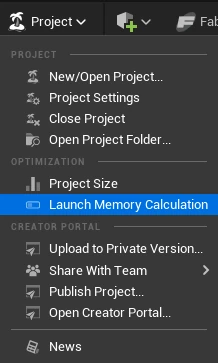
If any area of your island goes over 100,000, you can’t publish. In the same menu, Project Size shows which assets are the heaviest on disk; they’re usually heavy on memory too.
Over the limit? Epic’s main fixes
- Turn on streaming, so only nearby areas are loaded
- Spread content out instead of packing it in one spot
- Use fewer devices: they are among the most expensive actors
- Reuse the same assets instead of many unique ones
- Lower mesh detail with Nanite’s Keep Triangle Percent
- Use textures with power-of-two sizes and mipmaps
Source: Epic’s Memory Management in UEFN documentation.
Step 2: Upload to the Creator Portal
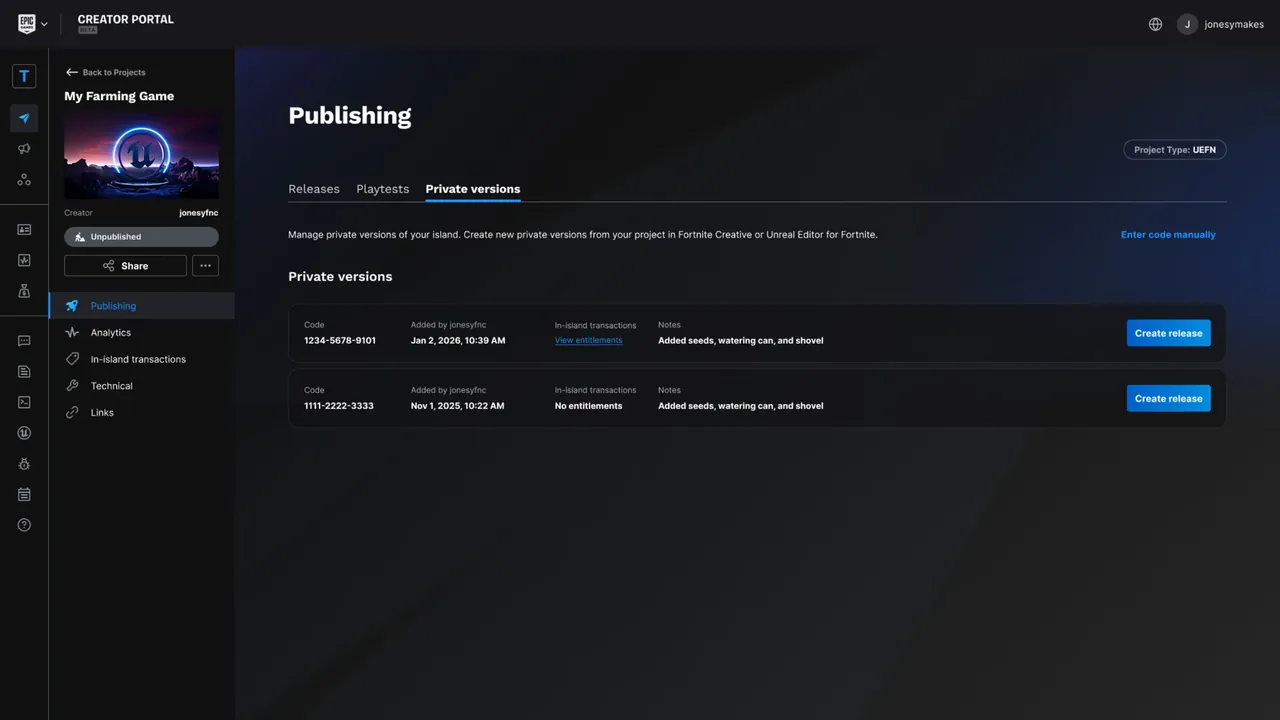
You can’t publish straight from UEFN. In the top menu go to Project → Publish Project. UEFN uploads your island and creates a private version of it in the Creator Portal, the website where you manage everything about your published islands.
Step 3: Create your release
In the Creator Portal, open Projects, pick your island and go to the Private Versions tab. Choose the version you just uploaded and click Create release. Epic first checks whether your island can be published at all:
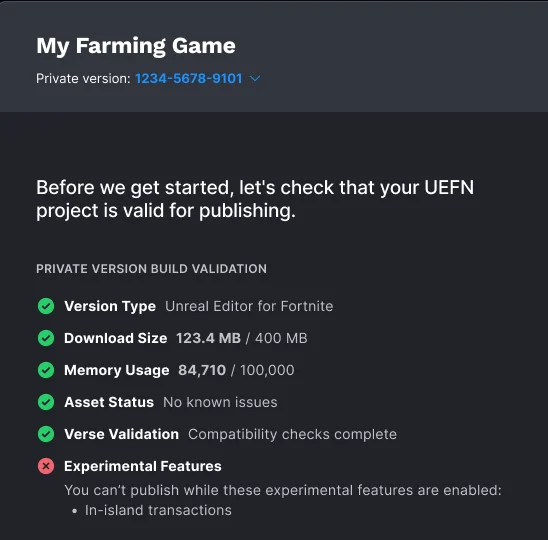
The check looks at the download size (up to 400 MB), the memory usage (up to 100,000, see step 1), your assets, your Verse code, and whether you use experimental features: an island with experimental features turned on can’t be published.
Then the release walks you through a few screens:
The release screens in the Creator Portal
- 1
Game details
Title, description and tags: everything players read about your island.
- 2
Rating
Your email addresses for the rating board, then the IARC questionnaire (step 4).
- 3
In-island transactions
Check the items you sell inside your island, if you have any.
- 4
Promotional media
Landscape and portrait thumbnails and a logo are required; trailers, screenshots and a lobby background are optional.
- 5
Attribution
Credit anyone whose assets you used.
- 6
Visibility
Choose who can see the island once it’s approved.
- 7
Submit for review
Send it to Epic’s moderation team (step 5).
The game details and promotional media are your Discover page, so treat them like an ad:
- Title: short and clear about the gameplay. "Pillars Box Fight", not "My Map v3".
- Thumbnails: see how to get more players on your Fortnite map.
- Description and tags: the words players search for.
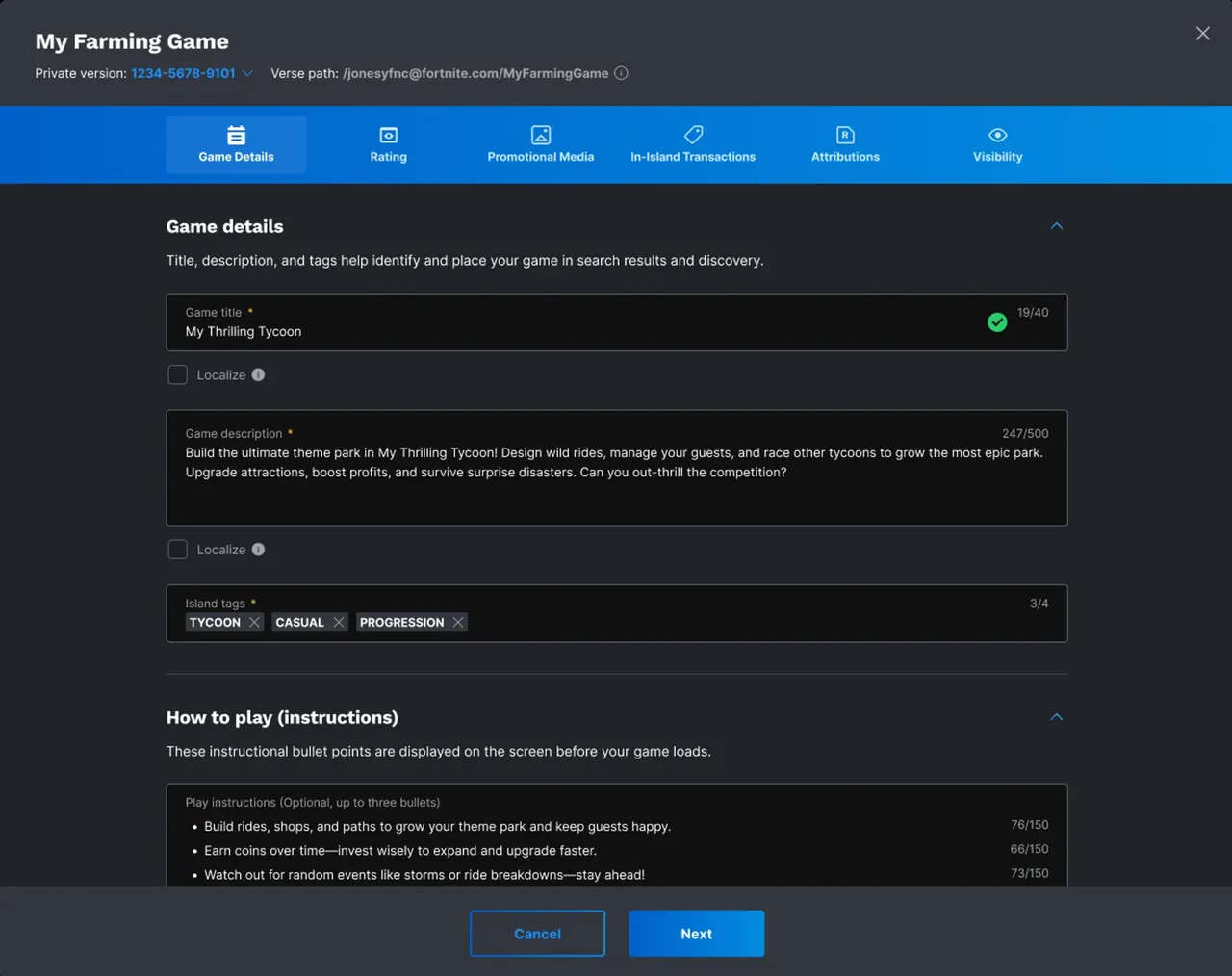
The limits on this screen:
- Game title: up to 40 characters
- Description: up to 500 characters
- Island tags: up to 4
- How to play: up to 3 bullets of 150 characters
The how-to-play bullets are shown on screen while your game loads, so use them to explain the goal in one line.
Step 4: The rating questions
Every island needs an age rating. You get it by filling in the IARC questionnaire in the Creator Portal: questions about violence, language, in-game purchases and what players can do together. Your answers set the age rating players see in each region, so answer honestly and precisely.
The questions can be confusing the first time. We recommend following this video, which walks through every answer:
Step 5: Review
Epic reviews a release in two rounds: first the title, thumbnails and other media, then the island itself while it’s being played.
How long does it take? In our experience a review has never taken longer than 24 hours. The fastest one we had was done in about 2 hours, the slowest in about 12. Updates to an island that’s already live usually go through a bit faster than a first release.
- our fastest review
- ~2 h
- our fastest review
- our slowest review
- ~12 h
- our slowest review
- every review so far
- < 24 h
- every review so far
- updates usually go faster
Step 6: Go live and get your island code
Getting paid: the Island Creator Program
Publishing makes your island playable. The Island Creator Program is what makes it pay: you get a share of Epic’s engagement payouts, and you can sell items in your island. You join it in the Creator Portal and fill in your tax and payout details. Read how UEFN creators make money for what you can earn.
Updating your map later
Updating works the same way as your first release. Make your changes in UEFN and use Project → Publish Project again: that creates a new private version. In the Creator Portal, create a release from that new version and submit it. Updates go through review too, and in our experience they’re usually a bit faster than a first release.
Regular, meaningful updates are also one of the best ways to get more players. Read how to get more players on your Fortnite map for the rhythm we use.
FAQ
Can I publish a Fortnite map under 18?
No. You have to be 18 or older to publish an island.
How long does Epic take to review my island?
In our experience, never longer than 24 hours: our fastest review took about 2 hours, our slowest about 12. Updates to an island that’s already live usually go a bit faster.
Do I need UEFN to publish, or can I use Fortnite Creative?
You don’t need UEFN: an island built in Fortnite Creative can be published too, from Island Settings → Overview → Publish Island. It then goes through the same release steps in the Creator Portal.
We specialise in UEFN ourselves, because it lets you build things Creative can’t: your own rules and systems in Verse, custom assets, and much bigger islands. In UEFN, the sky is the limit.
Sources: Epic Games, Publishing from the Creator Portal, Memory Management in UEFN and Publishing projects in UEFN. Rating questionnaire video by DMTnick on YouTube.